Product Details
Customizable Options
Option selection is an important part of building out a high converting PDP, both in terms of where where the options are located on the page but also in what form/UI/UX they are presented to the customer, i.e. a dropdown of options and what that dropdown looks like, or a series of radio buttons that are maybe disguised as buttons. You may even want to experiment with these options. This can often be a challenge because the tight coupling with the rest of the section. Thankfully Stratasphere comes with some handy tools to extrapolate the markup out to more manageable of customizable components.
Option Slots and Display Types
You may want to allow for some customization in terms of where the user you would like to place a product option within the page/section. For example you want to give them the ability to place a "Size" option selector either above or below the product variant's price. You may also want to give the user the ability to choose how to represent the selection of the option, i.e. it could be the form of a dropdown, radio buttons, or a checkbox to toggle an option on or off, etc. The choice is yours to decide build out what you fits your need.
To take advantage of these two functionalities you need to use the App\Http\Traits\HasCustomizableOptions trait in your Section class.
Slots
Slots are used to let the user (Strata user) define where a given option should be located on the page from a given set of locations. First step is to define in your section that uses the App\Http\Traits\HasCustomizableOptions.
protected function optionsSlots(): array
{
    return [
        'Above price (Slot 1)',
        'Below price (Slot 2)',
        //... more
    ];
}
You can define as many slots as you'd like. What you call the slots is what is going to show up in the section editor.
Next is to include the brick in your bricks array.
We use array destructuring here to insert the needed brick (['optionsSlots' => Group::name('Option selectors position')->bricks($this->optionBricks())]. You are free to add this brick where ever in your bricks array where it makes sense for your section.
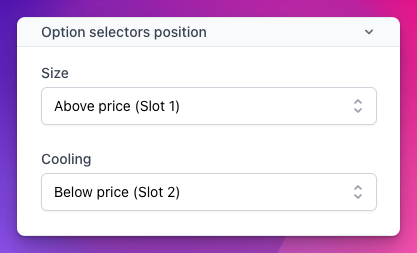
Last step is include the slots in your section's Blade file for where you want the defined slots to show up. For this you include this snippet and replace the number with the respective number slot.