Customizable Options
Product variant options as individual, flexible components.
Option selection is an important part of building a high converting PDP, both in terms of where the options are located on the page but also in what form/UI/UX they are presented to the customer, i.e. a dropdown of options and what that dropdown looks like, or a series of radio buttons that are maybe disguised as buttons. You may even want to experiment with these options. This can often be a challenge because of the tight coupling with the rest of the section. Thankfully Stratasphere comes with some handy tools to extrapolate the markup to more manageable of customizable components.
Option Slots and Display Types
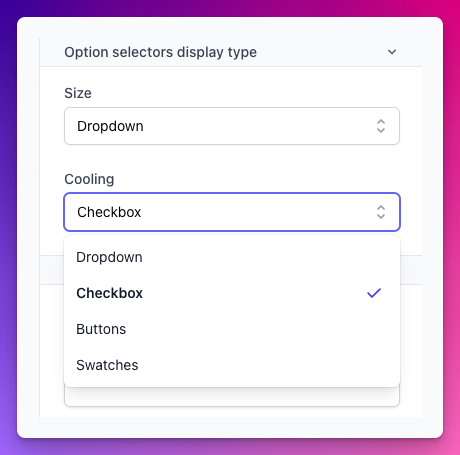
You may want to allow for some customization in terms of where the user would like to place a product option within the section. For example you want to give them the ability to place a "Size" option selector either above or below the product variant's price. You may also want to give the user the ability to choose how to represent the selection of the option, i.e. it could be the form of a dropdown, radio buttons, or a checkbox to toggle an option on or off, etc. We can build out what fits our need. Already Stratasphere come with four display types that are available to use.
Let's take a look a option slots first.
Slots
To take advantage of option slots you need to use the App\Http\Traits\HasCustomizableOptions and the App\Http\Traits\HasProductDetails traits in your Section class.
Slots are used to let the user (a Strata user) define where a given option should be located within the section based on a predefined set of locations. First step is to define what slots should be available in your section.
protected function optionsSlots(): array
{
    return [
        'Above price (Slot 1)',
        'Below price (Slot 2)',
        //... more
    ];
}
You can define as many slots as you'd like. What you call the slots is what is going to show up in the section editor.
Next is to include the option slot brick in your bricks array. We use array destructuring here to insert the needed brick. You are free to add this brick where ever in your bricks array where it makes sense for your section.
public function bricks() : array
{
    return [
        // more bricks if you have
        ...$this->optionsSlotsBrick(),
        // more bricks if you have
    ];
}
This will create a group in that the customizer what pulls in all the options for the product and lets the user select which slot is should be placed in.
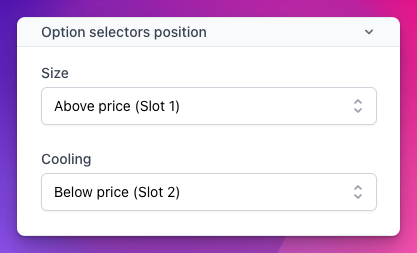
Last step is include the slots in your section's Blade file for where you want the defined slots to show up. For this you include this snippet and replace the number with the respective slot number (starting at 1).
Buy Box Option Selector Component
The Buy Box Option Selector component (<x-buy-box-option-selector />) goes perfectly with the slots since we now can't hardcode option selection markup in our code as we don't know where each option should be located. The <x-buy-box-option-selector /> solves this problem for us. By placing the component within the slots and passing it the $option it know how to display the selector based on a set of file name conventions.
Option Names
The component looks to see if you have created a Blade file with the same name as the option name passed to it and includes that file if it finds it. If it doesn't find one, it will default to a generic dropdown (select input). These Blade includes can, and should be in most cases, tenant specific. Let's look at an example of a option named "Size". Start by creating a new Blade in resources/views/[TENANT ID]/sections/includes/option-selectors/option-names/size.blade.php. The content of this file will then be included in the option slot. Normally you would then write your markup for a dropdown, a set of radio button, or how you'd want the customer to make their selection here. You can also include links to a modal that is tied to the selector if you need to as an example. You have access to the $option array and your section class's method and properties as well.
So if you need the currently selected variant you can access it with $this->selectedVariant for example.
But hardcoding the markup for how to display the selector for a specific option is not ideal if you want the Strata user to be able to control what selector should display like. This is where the last piece of the puzzle comes into play, display types.
Display Types
Display types works fairly similar to option names, but these should be solely for the markup of a specific type of selector, i.e. dropdown, or a checkbox, or a set or radio buttons, or even color swatches.
Display types are made up of two components, a PHP class and a Blade file for the markup, just like you know it from a Section.
Create a PHP class for your display type. There's no requirements for where to place this file but a recommended path would be View/Components/[TENANT]/BuyBoxOptionSelectors/. This is class needs to extend App\View\Components\BuyBoxOptionSelectors\OptionSelector and require you to define at least one (1) method, the render method which needs to return the view of the Blade file. Again, no requirements as to where you put this Blade file, but a recommended path is resources/views/[TENANT ID]/sections/includes/option-selectors/display-types/.
Let's look at an example for a dropdown display type.
Likewise, you have access to the $option array and all your section's methods and properties. But you also have access to a few extra variables.
$getWireModel
Gets the wire model name
$getWireKey
Gets the wire model key
$getOptionValues
Gets and associative array of the option's values. With each value being both the key and the value of the array, the only difference is it that the key has been transformed to lowercase. Example:
Just like with the slots we need to tell our section about this display types.
Add this to your section's bricks array:
And lastly we need to tell the section which of our display types it can use: